
The Problem: No API Access to Google Calendar Booking Pages
Google Calendar offers Appointment Schedules — a built-in booking page where customers can see available times and book directly. It works well for online bookings.
What Google does not offer: API access to this booking feature. You can't create Appointment Schedules programmatically or integrate the booking logic into your own applications. There's no way to control it through an interface.
That's where FlowCaptain comes in.
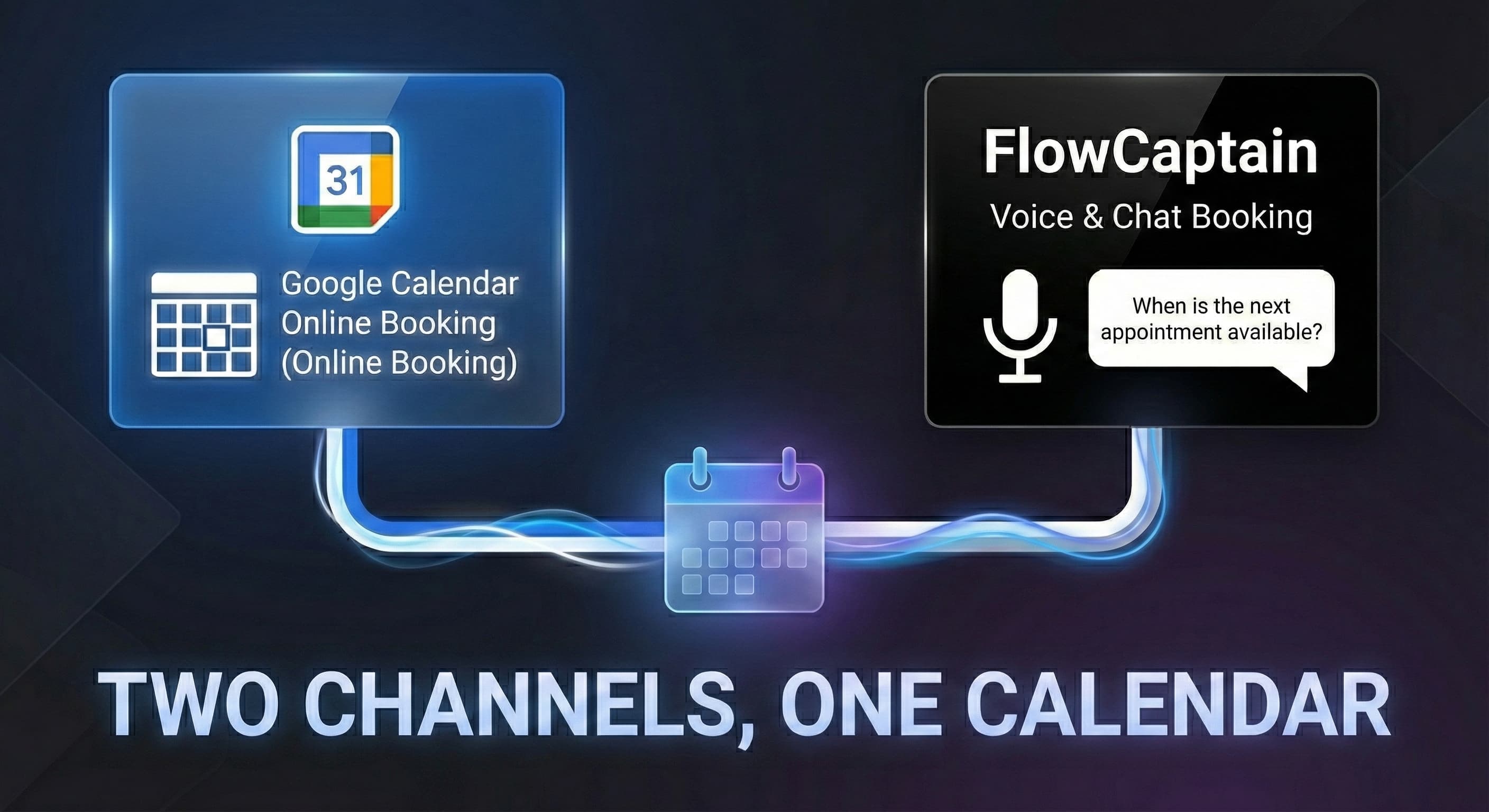
The Solution: Two Channels, One Calendar
The Google Calendar FreeBusy API — which FlowCaptain uses — doesn't care how an event was created. Whether it was entered manually, booked through Google's booking page, or added by another integration: an appointment is an appointment. A busy time slot is busy.
This means you can run both systems in parallel on the same calendar.
How It Works
- Set up a Google Calendar Booking Page — Create an Appointment Schedule on your Google Calendar and publish the booking page. Customers can book appointments online.
- Connect FlowCaptain — Connect the same Google Calendar to FlowCaptain. Configure your opening hours and appointment duration as usual.
- Automatic Sync — When a customer books through the Google booking page, FlowCaptain immediately sees that appointment as "busy." And vice versa: when an appointment is scheduled through the voice assistant and added to the calendar, the Google booking page shows that slot as no longer available.
The Result: Multiple Booking Channels
You offer your customers different ways to schedule an appointment:
- Online booking — Through the Google Calendar booking page on your website
- Voice booking — Through an AI voice assistant (e.g., Retell) that uses FlowCaptain
- Phone booking — Through a Retell phone number that checks availability via FlowCaptain
- Chat — Through a chat widget that calls the FlowCaptain API
All channels access the same calendar. Double bookings are impossible.
Why Not Just Use the Google Booking Page?
The Google booking page is a solid basic solution. But it has limitations:
- No natural language — Customers have to click through a calendar view instead of simply asking "What's free next week?"
- No API access — You can't integrate the booking logic into your own apps, voice assistants, or chatbots
- No voice channel — Phone-based appointment scheduling isn't possible
- No smart alternatives — When a slot is taken, the booking page doesn't automatically suggest alternatives
FlowCaptain fills these gaps — and the Google booking page stays as an additional channel.
Setup in 5 Minutes
Step 1: Create a Google Calendar Appointment Schedule
- Open Google Calendar
- Click Create → Appointment schedule
- Set the title, duration, and available times
- Publish the booking page and copy the link
Step 2: Configure FlowCaptain
- Create a calendar in your FlowCaptain workspace
- Enter the same Google Calendar ID (your calendar's email address)
- Configure opening hours and appointment duration to match your Appointment Schedule
- Generate an API key
Step 3: Add Both to Your Website
Offer your customers both options:
- A link to the Google booking page for customers who prefer to book online
- A voice assistant or chat widget for customers who'd rather ask than click
Both channels stay automatically in sync through the shared Google Calendar.
Conclusion
Combining Google Calendar's booking page with FlowCaptain gives you the best of both worlds: online booking for customers who prefer it, and natural language voice booking for everyone else. One calendar. No double bookings. No added complexity.